
Features QuickBooks Online
Countertop Software with QuickBooks Online
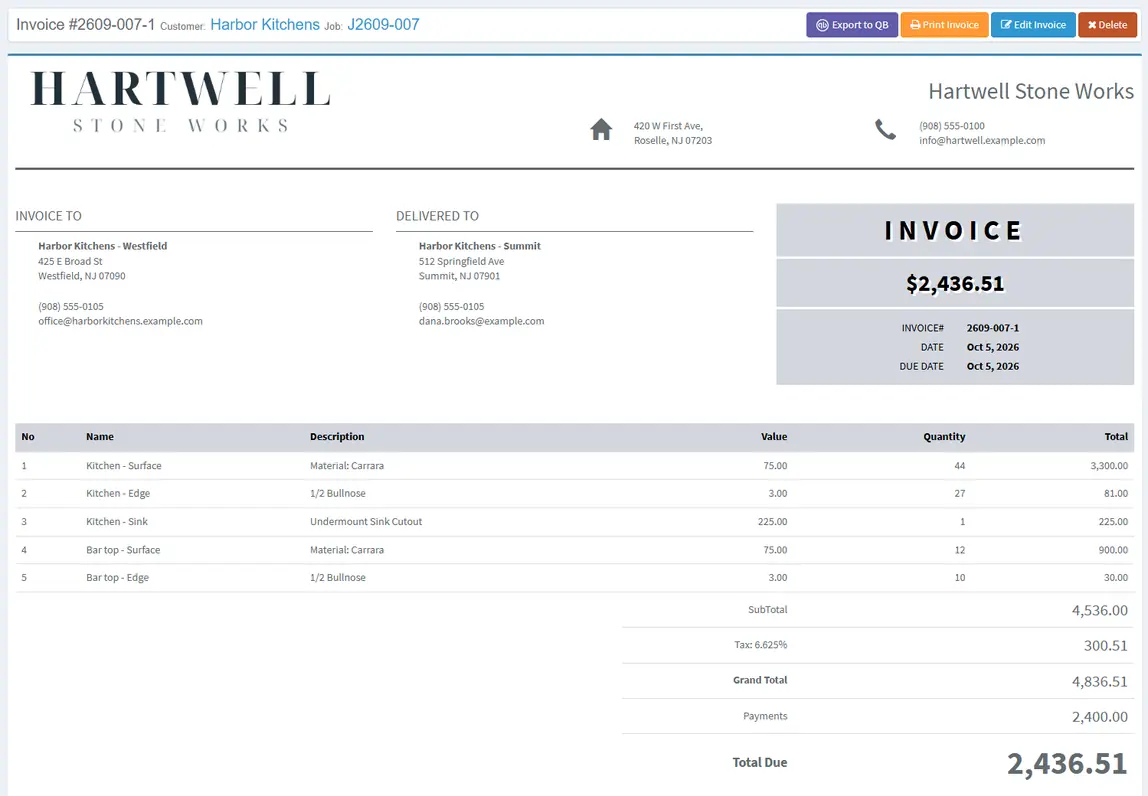
QuickBooks Online for countertop fabricators works best when the accounting step follows the same shop workflow. Create the invoice in Lapisoft, then send it to QuickBooks Online with one click when you are ready.
Lapisoft is one system for the whole countertop shop, with the QuickBooks Online export connected to the invoicing workflow and all features in one workflow.
Setup
How it works
- Enable the QuickBooks Online connection in Lapisoft.
- Click Connect. Lapisoft opens the QuickBooks Online page, where you approve the connection to the Lapisoft QuickBooks Online app.
- Link the Lapisoft customer to the matching QuickBooks Online customer, or create the customer there.
- Open the invoice in Lapisoft and export it with one click.
Invoice export
What goes to QuickBooks Online
The invoice export includes:
- invoice lines
- discount
- tax
- addresses
- payments as a deposit
The accounting entry starts from the invoice already created in Lapisoft.
You decide when to send each invoice
Each invoice is exported when the user chooses the export action.
That keeps the QuickBooks Online step tied to a specific invoice and gives the office control over when it is sent.
What stays in Lapisoft
Lapisoft keeps the shop records around the invoice: estimates, jobs, payments split across jobs, statements and account balances.
See invoices, payments and statements in Features
The invoice comes from the same job the shop has been tracking.
Included in the plan
Included in the price
QuickBooks Online is included in the current Premium Plan.
- All features
- Unlimited users
- One flat monthly price
Book a demo
See the invoice workflow in a demo
We can show the job, invoice and QuickBooks Online export in the same walkthrough.
We reply to demo requests within 1 business day. After the demo, interested shops get a 1-month free trial.